
Note: Only users with Admin or Billing Owner roles can add Members to the Company
Adding a Member to the Company does not give them access to any Organizations/Projects automatically. Please see Permissions vs. Licenses for more
Sending an Invitation
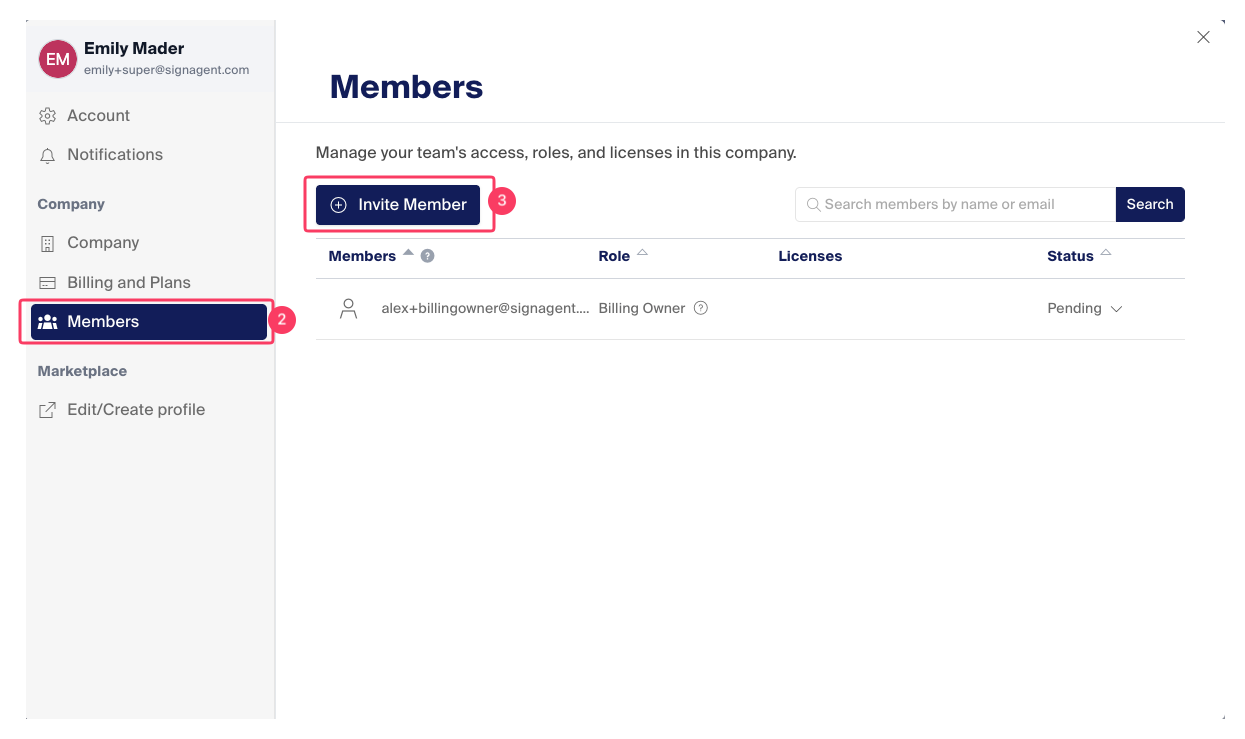
2. Click your name in the top right and choose "Company"
3. In the pop-up window, choose "Members"
4. Click the "Invite Member" button
Note: If your plan does not have any remaining seats, you will see an error message asking to upgrade your license. Please see: Add or Reduce Seats
5. Enter the email of the Member you wish to add
6. Choose their role in the Company
- Admin gives them the ability to Manage/Invite Members and update settings (except Billing)
- Member allows them to view settings and edit their own profile
- Guests can only edit their own profile and do not see the list of other Members or any Billing information
7. Choose the Plan from the dropdown
- If your Company has more than one plan, for example, Mobile and Online, be sure to chose the right one!
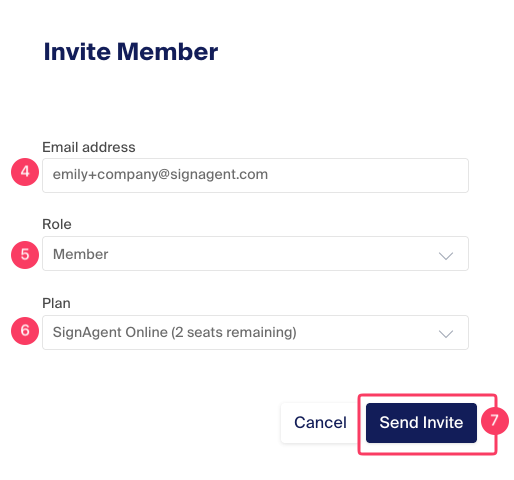
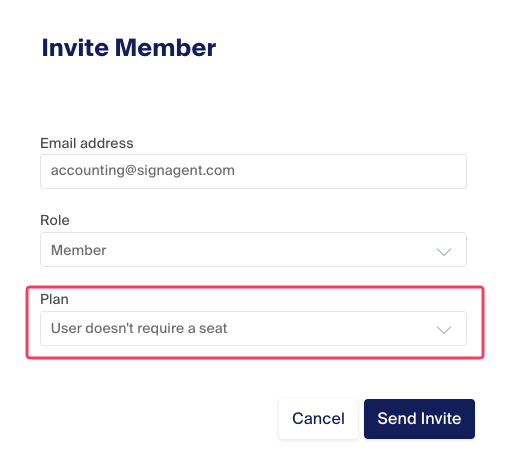
Note: You can also add users who do not require a license. This is useful if you have someone who manages the team but does not require access, or if you'd like to make the Billing Owner someone who manages the accounting for your Company.
Resending an Invitation
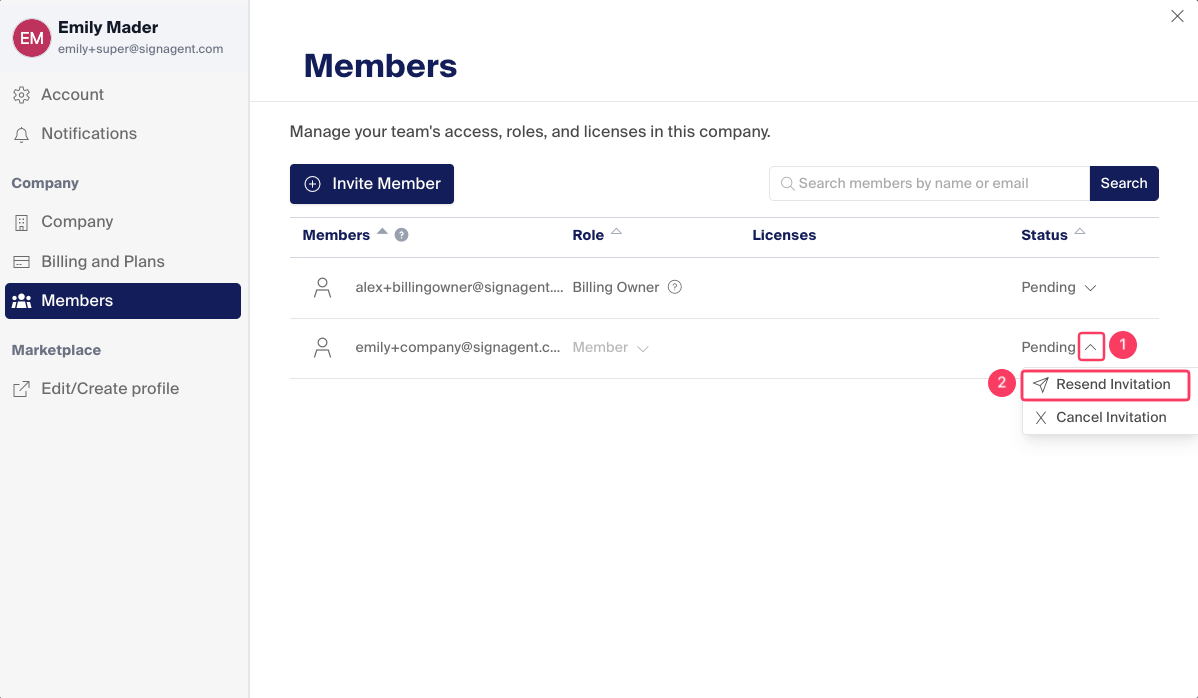
1. Click the arrow next to the Member you want to re-send the invite to
2. Choose "Resend Invitation"
If the user is still having issues joining the company or receiving invites, please see Automated Emails are Not Being Received, or reach out to support at support@signagent.com