
This article is paywalled, but don't worry, we'll put it on your tab.
There are two ways to create a indented text option when templating and each has their own benefits.
Invisible Alignment
Sequential alignment means aligning to objects only if they are present. Using this tool, we can draw text in its standard placement but align it to a visual that is invisible to act as an indent. When the visual is placed, the text will align to it, but if the visual isn't used, the text is drawn in the standard spot.
The advantage of this method is that it is easy to have multiple sizes of indent simply by uploading no-stroke, no-fill visuals of varying widths. Read more about alignment under the "Sequential Alignment" heading in this article.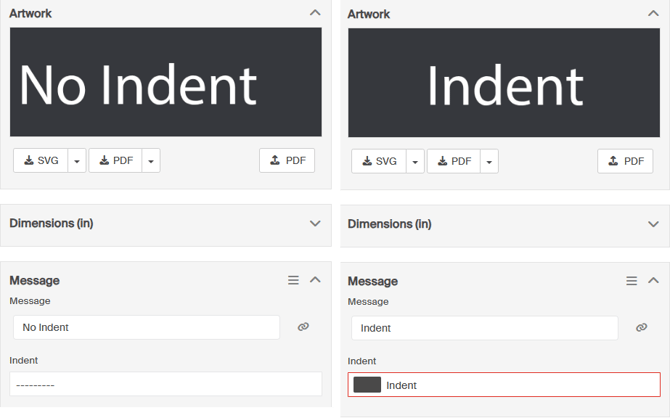
Example file: Alignment_indent.ai
Example file: Indent_visual.ai
Options
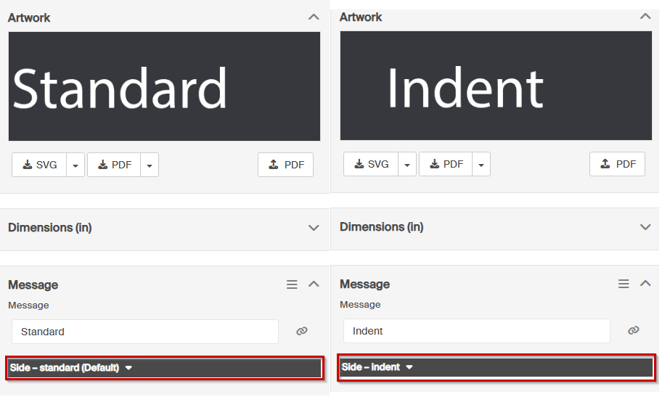
The options feature allows for multiple sets of rules to be considered in a template and then selected individually for each artwork. Create an option for the standard and indented version of the messaging which will allow users to toggle between the two rulesets. Read more about options in this article
While this method is more complicated to template, it is often easier to understand for the users who are programming sign content.
The example template below uses side options for simplicity but could be done with column or repeat options on more complicated templates.
Example file: Options_indent.ai