Note: You need Billing Owner or Admin access to make these changes
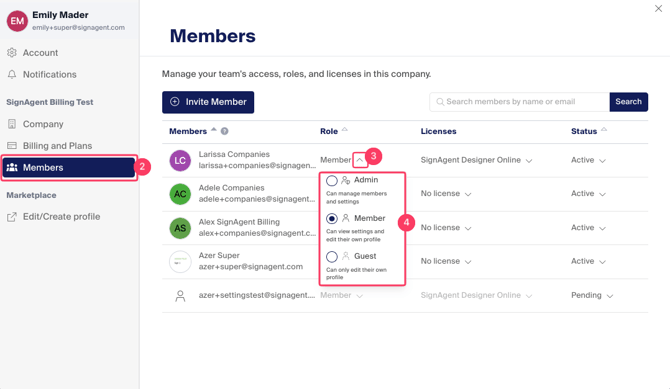
1. Change a User's Role
- Access the Settings Modal
- Go to the "Members" tab
- Click the arrow beside their name under "role"
- Choose which role you'd like them to have
Please see Roles and Access for info about each Role
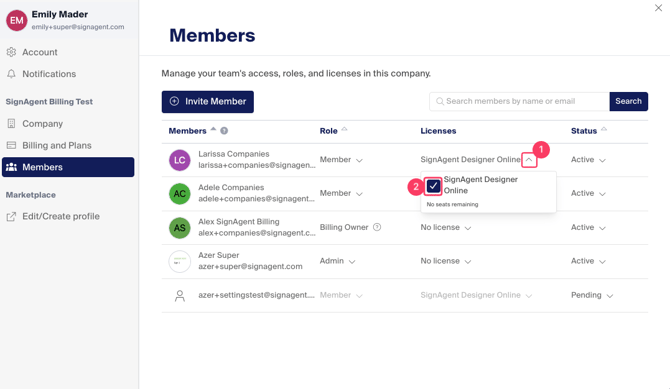
2. Remove a License from an Existing User
-
Click the arrow beside their name under the "Licenses" Column
- Uncheck the box for the license you wish to remove
This frees up a "seat" without removing the user from the Company
Note: to add a license to a user with No license, just re-check the box
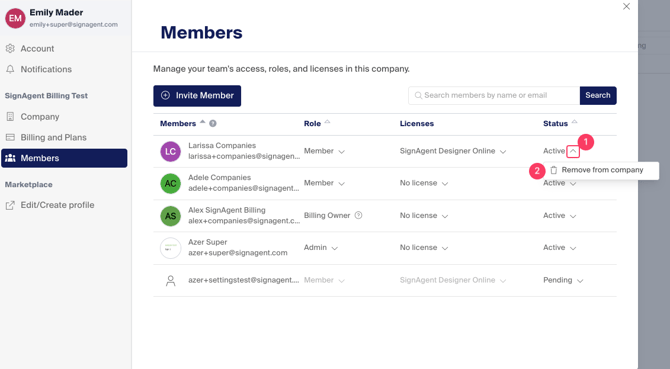
3. Remove a User from the Company
-
Click the arrow beside their name under the "Status" Column
- Choose "Remove from Company"
This removes them from the company list and removes their license