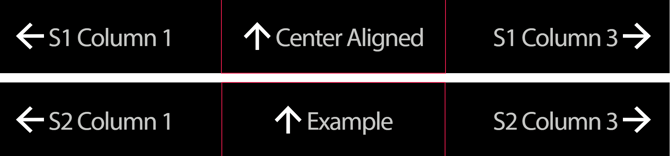
How do we make these two signs with the same template?
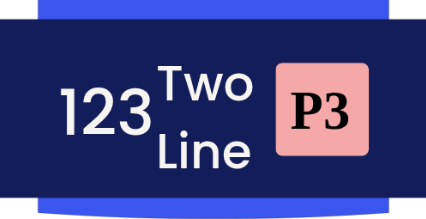

We can see that the content remains centered on the sign when a Symbol is present and no matter the length of each message. So how do we make this happen?
Group alignment within repeats is not currently possible. The feature can only be applied to standard message fields.
1. Set Up Basic Group Alignment
- Create a grouping layer — The layer name can be anything (e.g., "group_1") to help you organize your work. We're going to place all of the elements that we want to be aligned as a group within this layer. In this example, that's the 3 fields "Text", "Large Text", and "Symbol".
- Add an alignment command — Specify how you want to align (e.g., center to center) and what you're aligning to (e.g., side) with your desired offset.
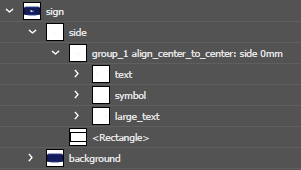
Result - The 3 fields will collectively find their center and align that to the center of the bounding box that defines the Side.
2. Other Alignment Targets
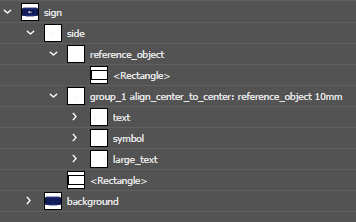
Instead of aligning to the side of a sign, you can create a custom alignment reference. This rectangle acts as an invisible element that your group will align to.
- Create a new layer called that will hold our reference object. This example is called "Reference Object"
- Add a rectangle to define the area that will be aligned to
- Update your alignment command to reference this custom rectangle, including any offset values you need.
avoid target names that include the words "side" , "column", or "align". These words are already used by templating commands and can cause interpretation conflicts
3. What Can Be Aligned To?
In Illustrator objects that are higher in the hierarchy will be displayed further to the left and objects lower will be to the right. Groups can align to objects at the same hierarchy level or higher, but not lower. That's a nonsense sentence without some examples to back it up though.
The examples below show group alignment within a repeating field. Please note this was done to illustrate the point, but that group alignment is largely not compatible with repeating fields. See section 4 for more information.
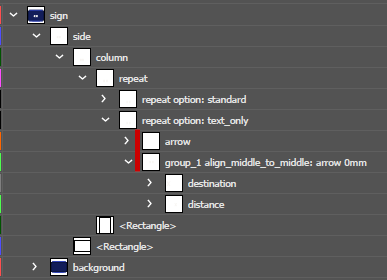
Example 1 - This works
The group can align to the arrow because they are the same depth in the hierarchy. They are both contained by the "repeat option: text_only" layer.
Example 2 - This works
The group can align to the column because the column's bounding box is above it in the hierarchy.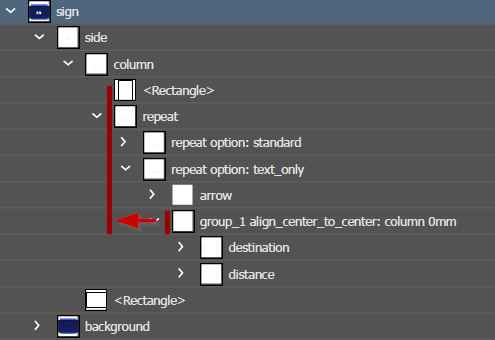
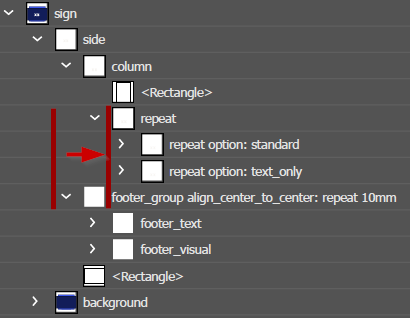
Example 3 - This does not work
The footer group cannot align to the column which sits lower in the hierarchy. The footer group is contained by the side where as the repeat is contained 1 layer deeper by the column.
Alignment Options
You can use any standard alignment command for groups:
- left/right/center to left/right/center
- top/middle/bottom to top/middle/bottom
4. Repeat Alignment
Group alignment will only work within repeats if the sign has 1 repeat per column. The group alignment feature is not currently compatible with repeat alignment.
This example allows the arrow and message fields group align to an object, but there is only one repeat in each of the columns.