
Note: You need Billing Owner or Admin access to make these changes
1. Turn off the existing user's license
- Access the Settings Modal
- Go to the "Members" tab
- Click the arrow beside their name under "license"
- Uncheck the checkbox
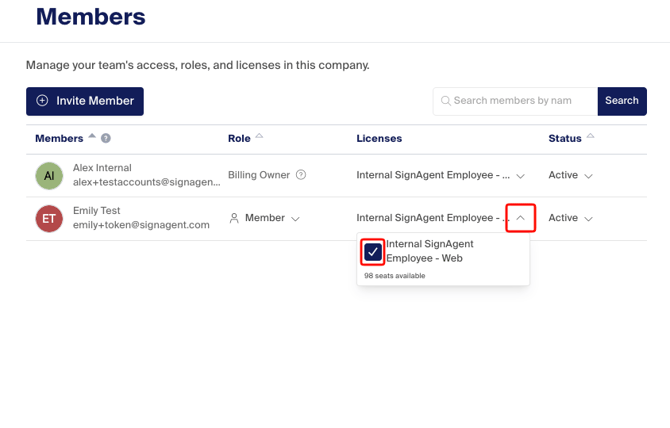
This action frees up one of your company license "seats", so you can add the new member.
2. Invite in the new User
- Click the "Invite Member" button
- Enter the new user's email
- Admin gives them the ability to Manage/Invite Members and update settings (except Billing)
- Member allows them to view settings and edit their own profile
- Guests can only edit their own profile and do not see the list of other Members or any Billing information
Choose their role in the Company
- Choose the Plan from the dropdown
- If your Company has more than one plan, for example, Mobile and Online, be sure to chose the right one!
For a more in depth article on adding Members, click here.
Note: if you need the new user to have all the same Permissions (Projects and Organizations) as the previous user, please contact support@signagent.com to ask for a permissions transfer and include the email of the previous user and the new user.