Following the steps in this article are going to be Import-ant
What it does
The import template can be used to create new signs only.
For uploaded locations the signs will be allocated to the correct location plan but will need to be manually placed in the correct place on that plan. For external map locations, GIS coordinates will need to be included in the import and signs will be automatically placed.
1. Import Template
The import template document can be found at this link. Duplicate or download it to make your own copy. Each row of the spreadsheet will create one sign marker.
Any location plans, projects, or sign types that don't exist already in the system, the import will create new "default" ones according to the inputted data.
IT IS CRITICAL that all locations and zones have a unique short code before completing an import. If each zone and location does not have a unique short code, they will need to be renamed.
Must Fill In Columns
These columns must be filled in for every sign.

Project - The name of the project
State - The name of the state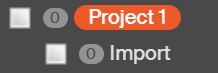
Location Short Code - Only the short code of the location should be entered. Each location will require its own unique short code. If there are two FL1 locations, the import won't know where to create the sign. 
Type Short Code - Only the short code of the sign type should be entered. Each location will require its own unique short code. 
Number - The unique identifying number for this sign. To learn more about numbering see this article.
Quantity - The quantity of signs the maker is meant to represent. 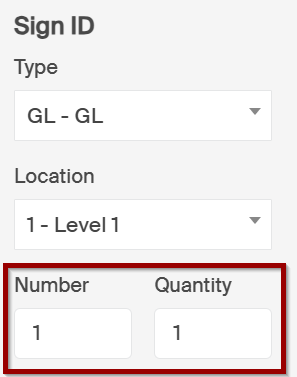
Optional Columns
The latitude and longitude columns should be filled out for signs that are being imported to an exterior map. The format of these coordinates needs to be in decimal degrees.

Editable Columns
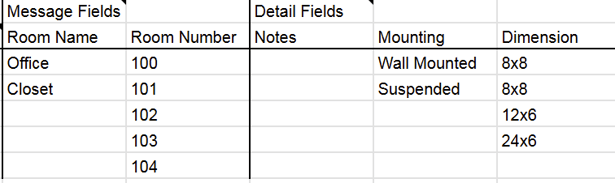
The Message Fields and Detail Fields columns are completely editable to be customised to your sign types. These columns will contain the actual information for the fields in each sign. Create new columns or remove them as needed. The only cell that needs to be un-changed are the "Message Fields" and "Detail Fields" headers themselves.
- Column names and field names must match exactly
- Repeat fields cannot be created via import
- Choice fields require additional setup. Please reach out to support@signagent.com for assistance
2. Import Process
Option 1
Send the filled out template to support@signagent.com along with the URL for the organisation it needs to be imported into.
Option 2
- Convert all cells to "Plain Text" format
- Remove the "(Decimal Degrees)" text from the Latitude and Longitude column headers. The header should say "Latitude" without any space or extra characters.
- Delete all columns that are not used at the right edge of the sheet
- Save as an xlsx format file
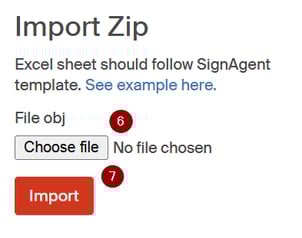
- Access the hidden import screen by adding "import" to the organisation URL

- Select the template file
- Click import to begin the import. Signs will be created one at a time so please be patient during the import. You should be able to create 1k signs per hour using this process.