
Note that automatic translations will never be perfect. Please verify all translations prior to implementation
An AI translation field will automatically take text entered into 1 field and translate it into the language specified. The terminology used in this article will be:
- Field - Where a user will input the content of the sign
- Language - The translator of the field. In this example, the chosen language will be assigned to translate the field "Room Name"
1. Access Manage Messages
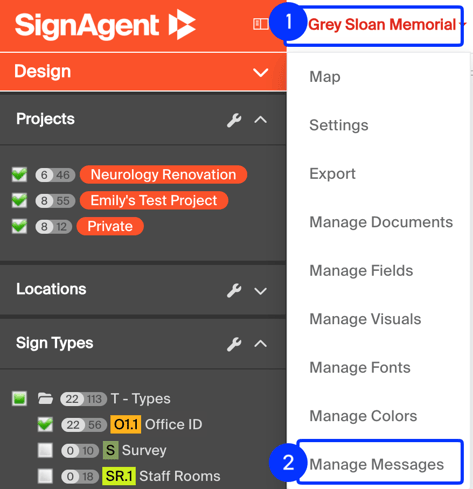
Click on your organization name near the top-left corner of the screen, and choose the "Manage Messages" option.
2. Add New Secondary Language
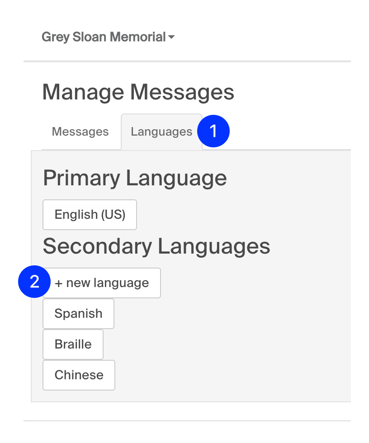
3. Create AI Language
.png?width=613&height=937&name=image%20(7).png)
- Language Name: Give this language a name
- Language Type: Choose Text
- Automatic Translation: Choose AI
- Set up your Organizations Primary Language: For AI translations to work correctly, the system needs to know which language it is translating from.
- Choose your language: Select which language you want from the dropdown
- Agree to Terms: Note that automatic translations will never be perfect, and that you should verify all translations done before going to production.
- Fields: Choose what fields this language will translate.
- Save
Orgs created prior to the release of this feature will have to set the Primary Language. The org may have a manually written Primary Language but there is now an option that can be selected using the dropdown in your Organization's top level Settings.
Step 5 is very important. Any field that we want to be available for translation needs to be entered.
Ex. The "Room Number" should be available for Dutch translation but the fields "Message" and "Department" never will be. Entering "Room Name" into the fields for the language will create a new automatic-translation field called "Room Name Dutch" that can be added to signs but will not create a "Message Dutch" or "Department Dutch"
4. Navigate Back to Manage Messages for Review
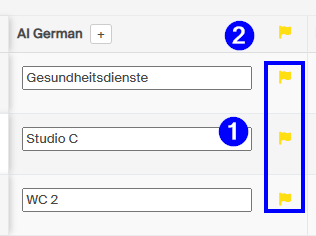
Under the new language column, a flag will be created beside any unreviewed translations. Clicking on a flag will open the review window and clicking on the one at the top of the column will open ALL translations for review.
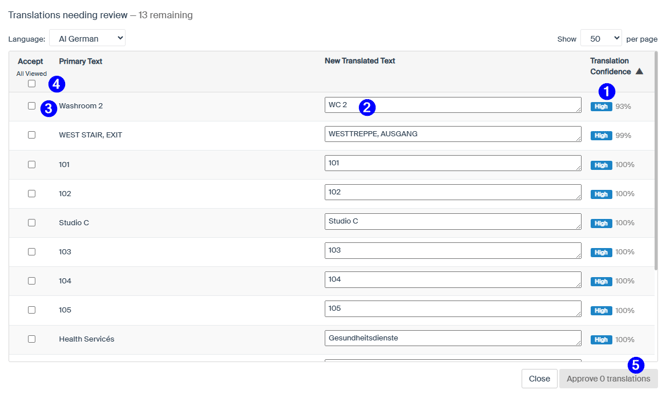

- Translation Confidence - Lists how confident the AI is in the translation provided.
- Text Box - Allows for the manual editing of the translation to change what the AI has provided
- Individual Selection - Each checkbox will approve that specific translation.
- Bulk Selection - As a user scrolls, the page which track which translations have been viewed. This button will approve all translations that have appeared on screen but not those the user has not scrolled to yet.
- Approval - Approves all translations that have been selected.