
Please note: These first few steps will need to be completed in Chrome with a secure internet connection.
Step 1: Locate Your Invitation
Check your inbox for an email with the subject line: “Invitation to Join [Company Name] in SignAgent.”

If you have not received an email, please reach out to the person who invited you or email support@signagent.com
Step 2: Begin Account Creation
Inside that email, find and click the link that says “get started by creating your account here.”
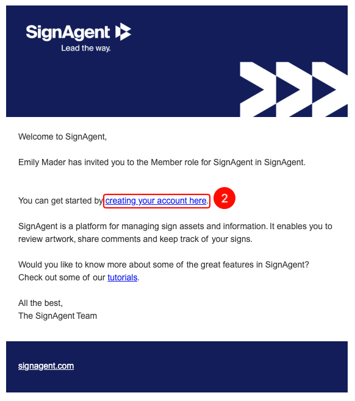
This will open the SignAgent registration page in Chrome.
Note: This process will still work if you’re working from a mobile device. It will simply open the link in a mobile browser.
Step 3: Set Your Password
Choose a secure password for your new account. Type it into the required field and confirm it.
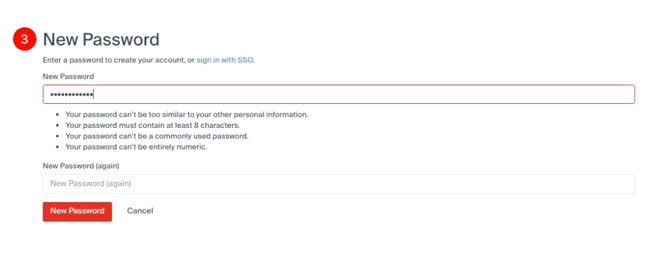
Please Note: You’re only halfway done! Continue the steps below to ensure full account set up is completed before moving to the SignAgent mobile app.
Step 4: Sign In Through Chrome
Once your password is set, you will be directed to the login screen. Click “Sign In”
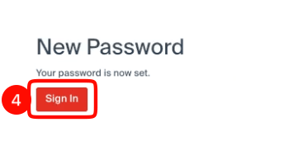
and enter your email address along with the new password you just created.
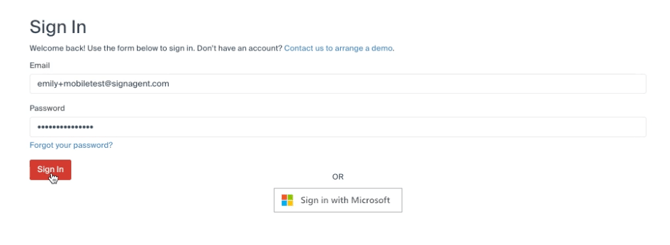
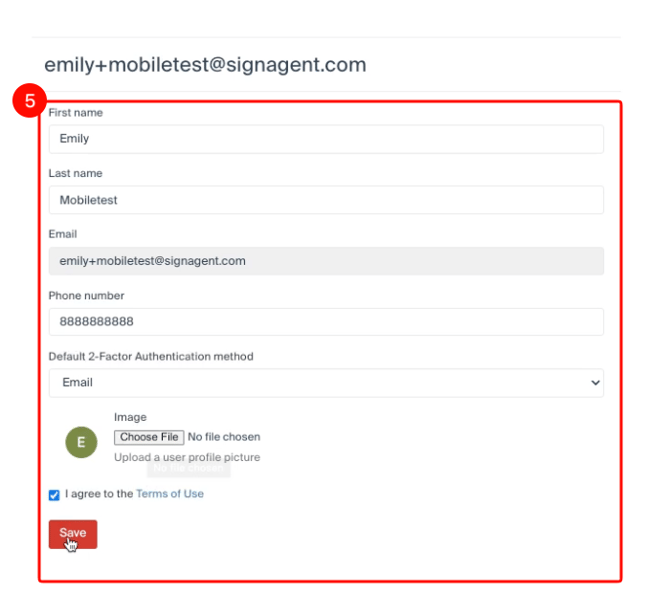
Step 5: Complete Your Profile
After logging in for the first time, you will need to finalize your user details:
- Fill out your personal information (name, contact info, etc.).
- Read and accept the Terms of Use.
- Click Save to update your profile.
Step 6: Accept the Company Invitation
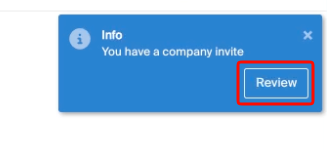
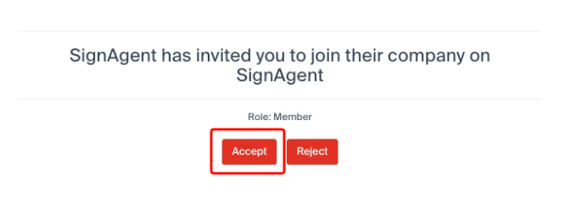
You will see a notification or a prompt to join the specific organization that invited you. Click Accept to officially link your account to the company’s SignAgent workflow.
Your account is now set up!
Step 7: Access the App
Now that your account is fully configured:
- Open the SignAgent app on your device.
- Sign in using your credentials to begin working.
For more information on our mobile app, please see this article.