
Haven't you already read this joke? Oh yeah, it's a repeat.
Overview & Examples
There are multiple ways to control the templated space between repeats. The article below will explain each in order of escalating complexity. Here is a quick guide to which type your sign needs to use and an example of it in action that you can download.
Static Height Template - Every repeat is a single size and the spacing between them doesn't change.
Simple Repeat Alignment Template - Every repeat contains the same content but the height of that content varies.
Layered Repeat Alignment Template - Repeats do not have consistent content and the spacing varies as that content changes.
Layered Repeat Alignment with Options Template - Repeats have multiple rule sets that need to be applied or the rules are too complex to be captured with a single Layered Repeat Alignment.
If you want to control the spacing of objects within a repeat check the articles on:
1. Static Height
Height boxes are the simplest form of inter-repeat spacing. This creates a sign where each repeat is the exact same height and they are all evenly spaced from one another.
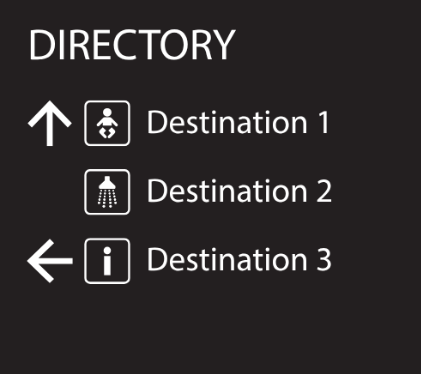
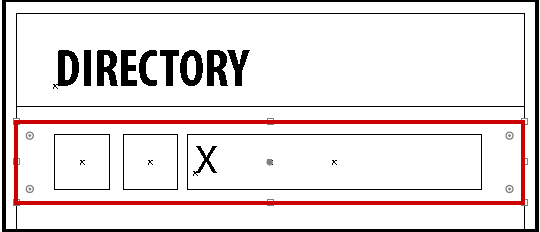
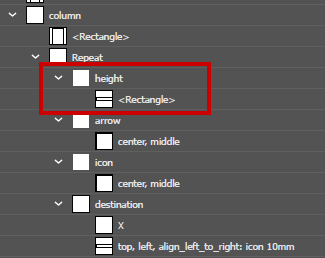
To use this kind of repeat spacing first create a layer called "height" within your repeat structure.
Next, draw a bounding box that encompasses all other text, visual, and background elements of the repeat. This box will determine how tall each repeat will be. The system will step and repeat the contents as long as there is room within the column's bounding box.
2. Alignment Spacing
If you want to learn about alignment, please see this article.
Anything more complex than a static height will require alignment spacing. Below are several examples of escalating complexity.
Alignment in a repeating template has slightly different syntax from regular alignment. The basic structure of a repeat alignment command is
thing_being_drawn (spacing) align_to anchor_in_repeat_above (spacing)
Think of this like an equation. Everything on the left of the "align_top_to_bottom" command is what is being drawn in the repeat, and everything on the right is what that drawn object is being aligned to in the repeat above.
This article uses align_top_to_bottom in all repeat spacing commands because it's the most common and easiest to understand. It is possible however to have commands that align bottom-to-top, left-to-right, or right-to-left.
2a. Simple Alignment
Simple alignment is great for when the same content appears in every repeat. In the example below, every repeat has a destination, but the size of that destination can vary between one and two lines. This rules out a static height as an option and instead necessitates the use of a repeat alignment command.
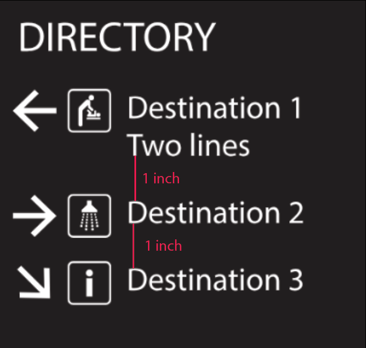
The command is destination align_top_to_bottom destination 1in. Notice how it follows the Drawn - align_to - Anchor (spacing) format mentioned above. This is added directly to the repeat layer itself.
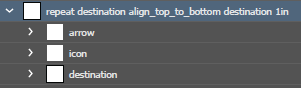
In this example, when the system goes to draw a new destination, it looks for a destination in the repeat above. It then aligns the top of the destination in the current repeat to the bottom of the last destination in the repeat above and finally adds 1 inch of space between them.
2b. Layered Alignments
The relationship between repeats isn't always simple though. Layered alignments allow us to create a sign where:
- An icon aligns to an icon with 5mm of space
- A destination aligns to an icon with 10mm of space
- A destination aligns to a destination with 15mm of space
- An arrow aligns to an icon with 35mm of space
- An arrow aligns to a destination with 40mm of space
The command to achieve this outcome is:
repeat arrow 30mm icon destination 5mm align_top_to_bottom icon 5mm destination 10mm
Don't worry, this won't make sense yet. Keep reading.
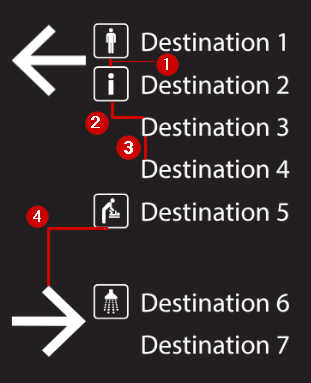
Rule 1 - Commands Read Left to Right
The instructions are read starting from the left and once the system finds an object, it stops reading that side of the equation. This means that different repeats end up with different commands depending on the content of those repeats.
The first two repeats in the sign above demonstrate this. Let's start with the "thing_being_drawn" side of the equation which reads "arrow 30mm icon destination 5mm".
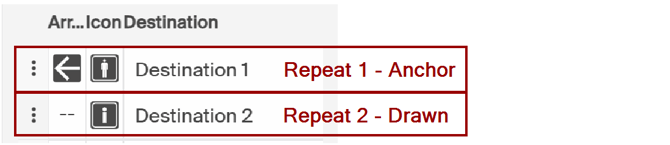
When drawing the second repeat the template is going to first look for an arrow being drawn. It doesn't find one because Repeat 2 has no arrow assigned so it moves on.
Next, it will look for an icon. There is an icon in Repeat 2 so that is what the spacing will be based on. Everything after the icon in the equation will be ignored.
As a reminder, the whole Drawn side command is:
arrow 30mm icon destination 5mm
For this specific repeat, the template hasn't found an arrow, but has found an icon being drawn and so it stops reading. Removing the arrow and everything after icon leaves a Drawn side of the equation that just reads:
"icon"
Turning to the "anchor_in_repeat_above" side of the equation, it reads as, "icon 5mm destination 10mm". This is the anchor off which the second repeat will space itself. Starting from the left, the system will first look for an icon. It finds one in that first repeat and so ignores the rest of the command.
icon 5mm destination 10mm becomes icon 5mm
When the system puts these two sides together, the alignment of the second repeat to the first is
icon align_top_to_bottom icon 5mm
Deciding on the Order
To determine the order in which each side of the equation should be written, think about:
-
Unique behaviour
-
The highest element in the current repeat. This determines what is first on the Drawn side of the equation.
-
The lowest element in the repeat above. This determines what is first on the Anchor side of the equation.
In the example, when an arrow is drawn, that indicates a change of direction and is accompanied by a larger space. When an arrow isn't present, that extra space is not needed.
This unique behaviour means an arrow should be first on the Drawn side of the equation. Whenever an arrow is drawn extra space is required, so it should be the first thing a template is looking for.
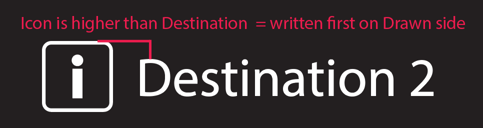
On a row without an arrow, the Icon is both higher and lower than the Destination text. This means both the Drawn and Anchor sides should list the Icon first. There's always a destination in a repeat so if it came first, every row would align destination to destination. The Icon would never be considered.

Rule 2 - Spacing is Additive
You've likely noticed that there are spacing commands on both sides of the equation. These spacing commands add together and allow for more complicated behaviour. The table below shows all of the ways the drawn side can interact with the anchor side to give different spacing between repeats.
Drawn = repeat arrow 30mm icon destination 5mm
Align = align_top_to_bottom
Anchor = icon 5mm destination 10mm
| Drawn Side | Anchor Side | Total Space |
| arrow - 30mm | icon - 5mm |
35mm |
| arrow - 30mm | destination - 10mm | 40mm |
| icon - n/a | icon - 5mm | 5mm |
| icon - n/a | destination - 10mm | 10mm |
| destination - 5mm | icon - 5mm | 10mm |
| destination - 5mm | destination - 10mm | 15mm |
Maybe, every combination won't be used, but this table shows all possible combinations the alignment command allows for.
Best Practice
1. Write down every spacing combination required (these were the measurements at the top of the section)
- icon to icon 5mm
- destination to icon 10mm
- destination to destination 15mm
- arrow to icon 35mm
- arrow to destination 40mm
2. Write the alignment command in order without any spacing.
arrow icon destination align_top_to_bottom icon destination
3. Add smallest measurement (5mm) to one side. If you're unsure, start with the anchor side.
arrow icon destination align_top_to_bottom icon 5mm destination
4. Find anything else that spaces off that object and add a measurement on the opposing side to get the desired value.
In this example, the destination also needs to space to the icon as an anchor. 10mm total - 5mm from icon = 5mm for destination
arrow icon destination 5mm align_top_to_bottom icon 5mm destination
5. Repeat this process for all spacing requirements
Destination to destination needs 15mm and 5mm is already coming from the Drawn side destination. The anchor side needs 10mm to achieve the desired total.
arrow icon destination 5mm align_top_to_bottom icon 5mm destination 10mm
Arrow to icon needs 35mm and 5mm is already coming from the Anchor side icon. The Drawn side Arrow needs 30mm to achieve the desired total.
arrow 30mm icon destination 5mm align_top_to_bottom icon 5mm destination 10mm
6. Check to ensure that each required combination listed in step 1 is accounted for in the command.
2c. Layered Alignments with Options
Sometimes alignments get too complicated to contain in a single command or don't have a single consistent spacing. This is when the Options feature can be added to the Layered Alignment. To learn more about Options, check out this article.
In the example below there are a few alignment inconsistencies.
-
Repeat to Repeat - A destination needs to align to a destination with 8mm of space
- Repeat to Repeat - A destination needs to align to a destination with 30mm of space
- Within the Repeat - An arrow aligns between two destinations
- Within the Repeat - An arrow aligns to a destination (Destination 4 below)
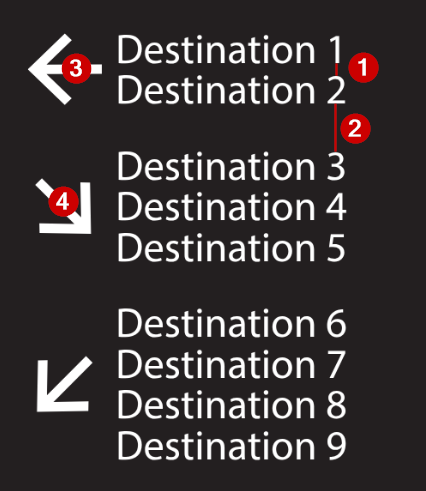
Those first two points mean that a single layered alignment command cannot capture this complexity. The same two things align to each other but with completely different spacing. To make this work we use repeat options.
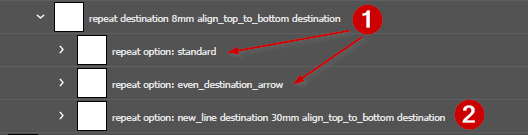
- The first repeat command is placed on the repeat layer as usual. This will be the default repeat alignment and is used for both sets of repeat options that have unspecified alignments.
- The alternative repeat alignment is written directly after the name of the repeat option. When this option is selected, the repeat will be drawn with this alternative spacing to the repeat above.
The "standard" and "even destination arrow" options handle points 3 and 4 above and allow for different alignment of arrows depending on the number of destinations. This is a standard option and not directly related to repeat spacing.
Congratulations, you made it to the end of repeat spacing! It's a real doozy so go take a walk outside and get yourself a snack. You've earned it.