
This feature will add a whole new dimension to your signs!
Simple Example Template
Repeats Example Template
To make a sign with variable dimensions there are 3 elements that will be covered in this article.
- Variable Commands - Control how the artboard changes size
- Field Object Anchors - Control how visual and text fields change size
- Static Object Anchors - Control how static elements like the background change size
1. Variable Commands
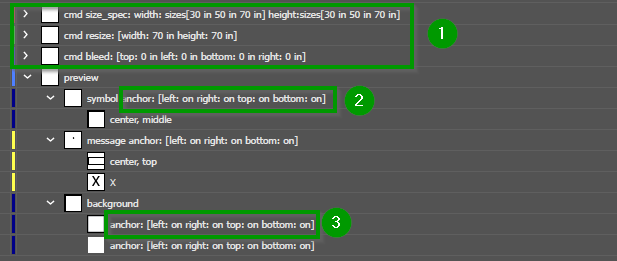
To enable variable dimensions, there are three layers that need to be added to your sign. These exist outside of the sign content layer that will be titled "sign" or "preview". Each of the three layers require a bounding box within them that is a no-stroke, no-fill rectangle that encompasses the entire sign.
A. Size Specification
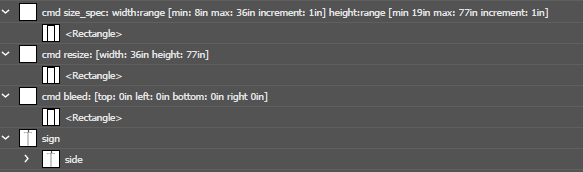
The “size_spec” layer is used to define the possible dimensions that the template can resize to. This can be done with a list of possible dimensions, or by setting a range with a minimum and maximum.
cmd size_spec: width: sizes[10 12 15] height: range:[min: 20 max 60 increment 2]
This command results in a sign with
-
-
Three possible widths (10in, 12in, and 15in). The "sizes[ ]" means within the brackets will be listed all possible sizes.
- Twenty possible heights. The "range [ ]" means that the command in the brackets lists the minimum, the maximum, and the size of the allowed increments. In this case a minimum of 20in height with 2in increments would allow for a height of 22, 24, 26 and so on but not 25in.
-
- If no units are specified in a command, the default units for the document will be used. All the commands could be listed above with a unit suffix ie. "10mm" if that isn't the document's default.
- When creating increments or sizes less than 0, ensure to include a zero prior to the decimal. "0.5mm" will work but ".5mm" will not.
B. Default Size
When drawing the template, it is important to draw it at the maximum possible size. Bounding boxes are not resized in this process so it is important to ensure that all elements are drawn at the largest size necessary. The resize command will provide the default size at which artwork should be drawn when a sign is first created.
cmd resize: [width: 36in height: 77in]
C. Bleed
The bleed command will account for extra space around the sign that is not considered to be part of the dimensions.
cmd bleed: [top: 0.5in bottom: 0.5in left: 1in right: 1in]
If the bounding box for the "Side" of the sign is drawn 10in x 10in, the artboard would need to be 12in high x 11in wide to account for this bleed. As the dimensions of the sign change, this bleed will remain constant and not be counted towards the sign's actual width.
- When using sizes less than 0, ensure to include a zero prior to the decimal. "0.5mm" will work but ".5mm" will not.
2. Anchoring
- It is important to use the full sign structure when templating variable dimension signs. This means that all templates must have a "side" layer and bounding box even if they do not have more than side.
Now that the rules for changing dimensions for the overall sign have been set, each object needs to specify its Anchor which is how it changes as the artboard shrinks or grows. Resizing can change not only the scale but also the height/width ratio of the sign, and without proper anchors in place the sign elements could shift out of place or fail to maintain proper scale.
Turning an anchor on serves to lock the distance between the object and the side of the sign it is anchored to.
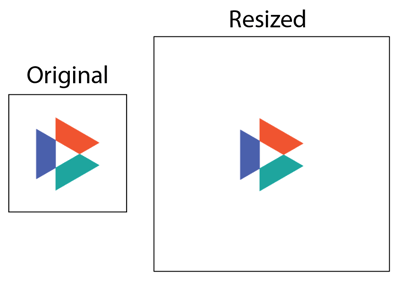
Without an Anchor
When the sign's dimensions double in size, the visual is not anchored to any side and remains the same size and centered where it was drawn
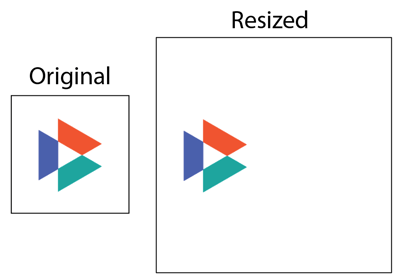
anchor: [left: on]
With the visual anchored to the left side, it will maintain the distance originally set from the left side of the sign.
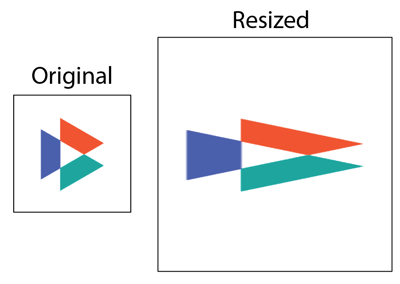
anchor: [left: on right: on]
Now the visual is anchored to bot the left and right side of the sign. To maintain both distances, the visual itself must stretch.
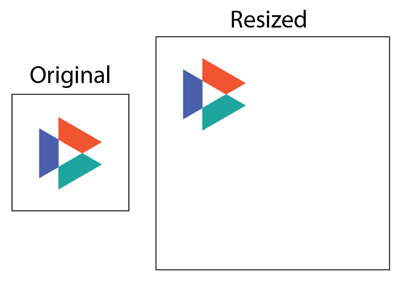
anchor: [left: on top: on]
Both a horizontal and vertical anchor have been set. Now the visual remains anchored to a corner.
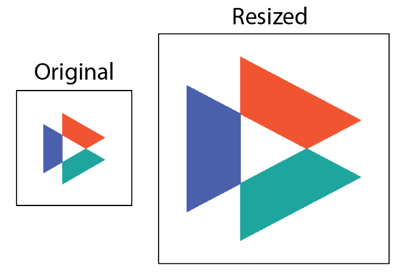
anchor: [left: on right: on top: on bottom: on]
The visual is anchored in all dimensions and will grow with the sign.
- It is only necessary to write the sides that will be anchored. In the examples attached you will see the anchoring command written anchor: [left: on right: off top: on bottom: off] for clarity.
2a. Anchoring Field Objects
The anchor command for field objects is placed in the layer name for the field itself. This ensures it encompasses information for both the bounding box and example text.

2b. Anchoring Static Objects
The anchor command for static objects whose content is not controlled by a field is placed directly in the name of that object. Note that this applies even if other control commands like color inheritance are used on these objects. It is still the same shape being drawn each time and so anchor commands are listed.
