
Keep calm and maintain version control.
Why use Versions?
Versions are great for when you need to track exactly that - versions of the same sign that exist in different "states" of existence.
For example, let's say you have:
1. A Managed sign that is a real world asset currently installed on the wall
2. A temporary version of that same sign that will be installed during a renovation
3. A brand new sign being planned, designed and installed in the next two years to take its place
Instead of cloning a sign (possibly multiple times) to track all this, and then trying to remember what sign(s) they are associated with and creating more possibilities for human error and bad data, you can create versions of that sign and then merge them back together to keep everything organized and streamlined.
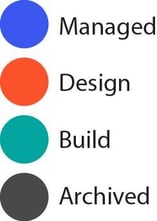
Colour Key
Creating a Version
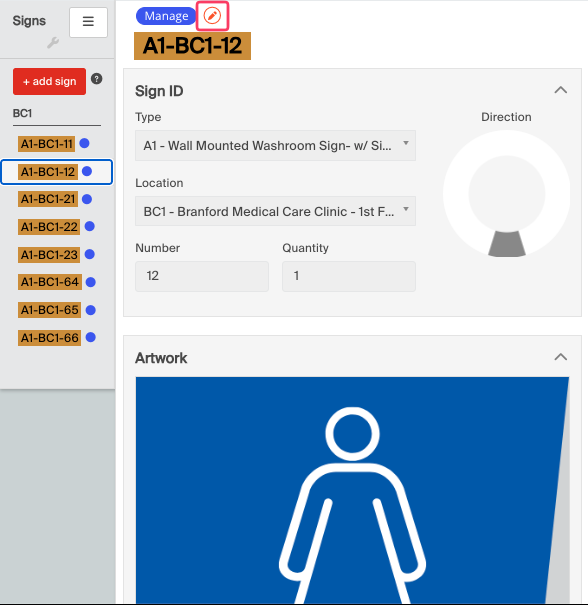
Click the "edit" icon at the top of a Managed sign that is going to be updated.
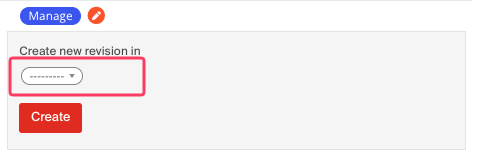
Choose a Project and state to create a revision in.
Once you've chosen the Project and state, click "Create".
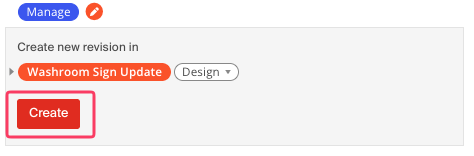
This creates a second "version" (v2) of the same sign in the Project and state that was selected...
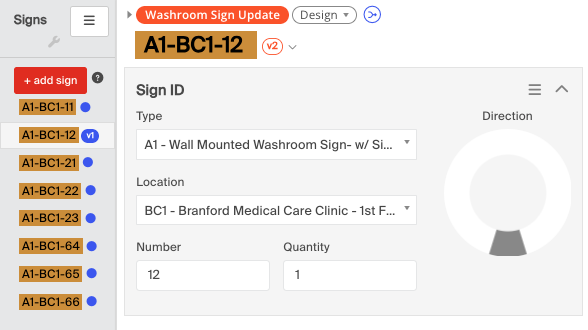
... and adds a second marker in that Project to represent it.
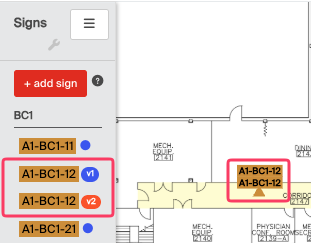
Now you can track the ongoing changes needed to that sign (v2), while still maintaining a database of what is actually currently on the wall (v1).
Note: When a new version of a sign is created, the photos associated with the old version do not move over to the new version. This is intended behaviour. The photos will be retained in the original version (v1) which will eventually be archived when the sign is merged back at the end of the project.
Merging Signs
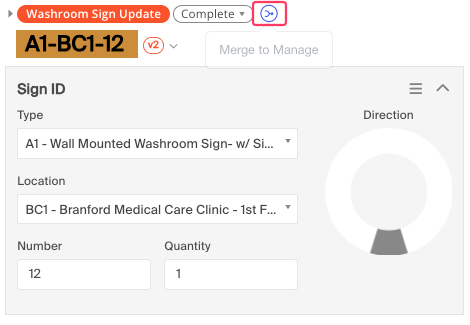
Once the update/change has been completed, you can merge the sign back to manage by clicking the Merge to Manage button as shown below. This turns that version into the real world managed asset.
You will now see the current version of the sign listed as the Managed sign (on the wall), and there will be an automatic "Archived" state added to your Manage project, where the old version (v1) of the sign will be moved to.
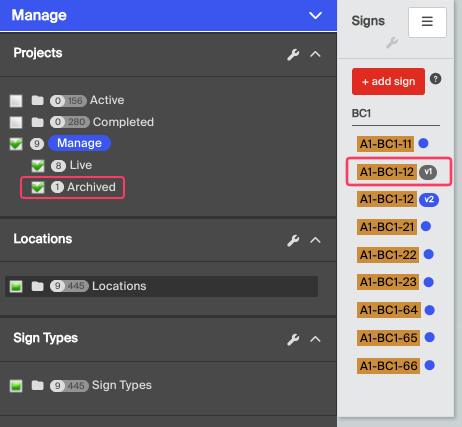
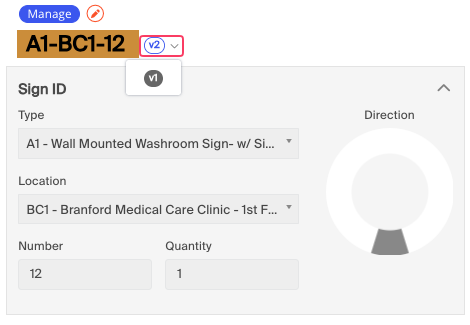
Additionally, if you click on the icon next to the sign tag on the new version, you can now view all previous versions of the sign.
Finally, it's the ciiiiiircle of liiiiiiiiife..... because you can repeat this as many times as needed, forever.