
Download the templates from this article:
1 Sided Repeat Template.ai
2 Sided Repeat Template.ai
Haven't you read this joke before? Oh yeah, it's a repeat.
Structure
The first thing to understand is how SignAgent breaks down a sign's content. There are 4 nested levels:
- Side - This one is pretty self explanatory. This is the number of faces a sign has.
- Column - Within each side there are columns. These define the maximum number of rows of content.
- Repeat - Within each column are repeats. The repeat defines what content can go in each row of a sign.
- Fields - The fields in the repeat are the actual content of the sign
-
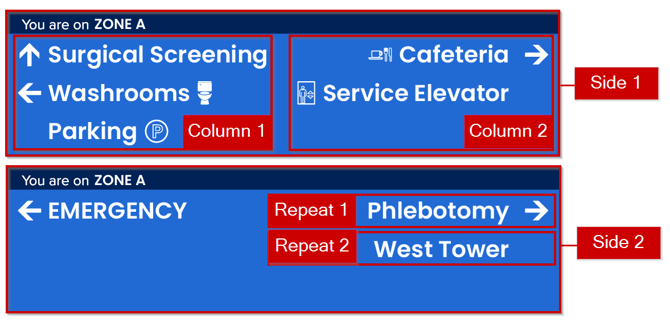
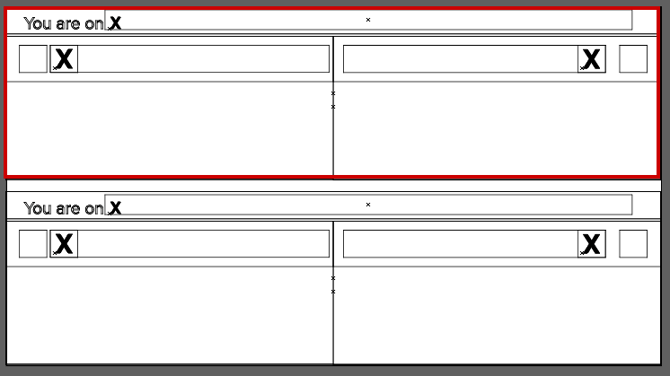
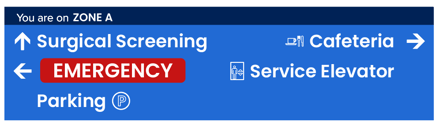
This sign has 2 sides.
-
Within each side there are 2 columns.
-
Within each column there are a maximum of 3 repeats.
-
Within each repeat there are 3 fields: arrow, destination, and symbol
Creating the Sign Type
The information identified about the number of sides, columns, repeats, and fields will now be added to the sign type.
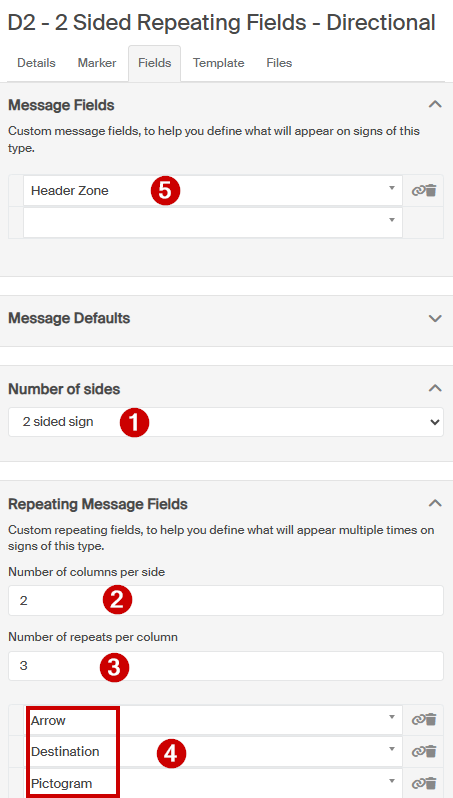
- There are 2 sides
- Within each side there are 2 columns
- Within each column there are a maximum of 3 repeats
- Within each repeat, an Arrow, Destination, and Pictogram could be drawn
- The Zone Header is set as a non-repeating field because the information is only entered once. The content will be drawn in two places on the sign, but the person programming this sign only enters the text one time = a non-repeating field
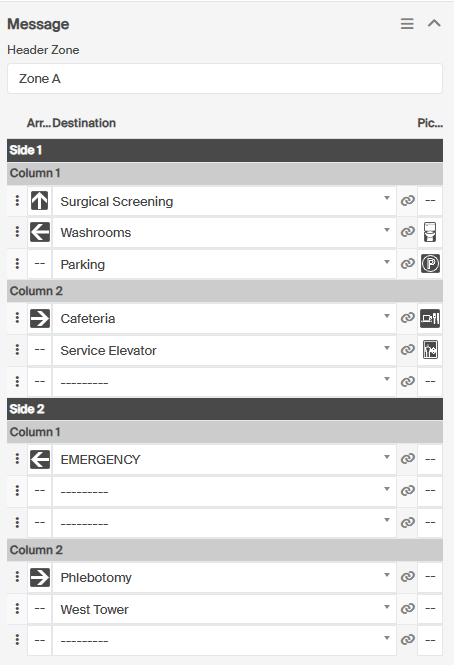
The Result
Templating
1. For your first attempt, a single sided sign can be easier to work with. A single sided example is available at the top of the article.
2. When creating multi-sided and multi-columned signs the best practice is to get 1 column on 1 side working as intended and then duplicate, rename, and reposition those objects to create the other sides and columns.
1. Create the Sides
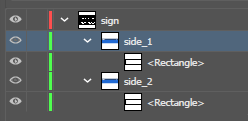
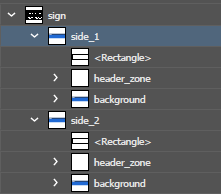
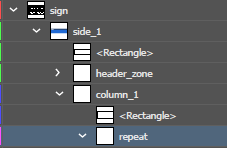
Just like a field, a side needs a bounding box to tell the system where the edges are. Within the "sign" layer create a sublayer for each side and draw a no-stroke no-fill rectangle to define the perimeter. When creating a 1 sided sign, this layer can simply be called "sign".
2. Create any Non-Repeat Fields & Background
Within the sides, create layers for any fields that are non-repeating or static elements of the sign. These are created like any text or visual field that you've done before. If you need a refresher, check out this introduction: Templating Introduction
3. Create the Columns
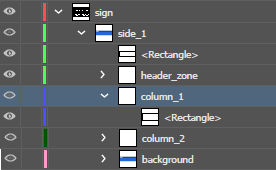
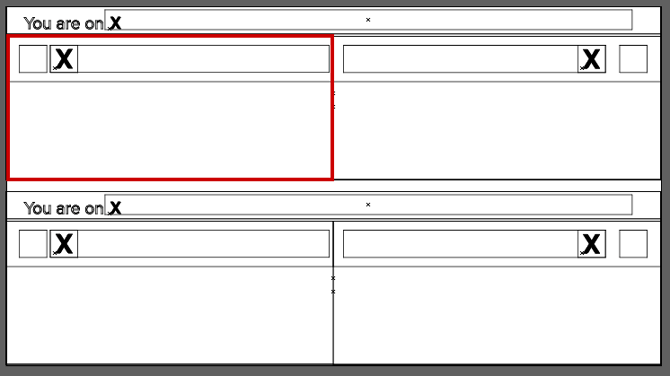
Create a layer within the Side for each Column. A single column in a side can be named "column" but multiple columns need to be numbered "column_1", "column_2", "column_3", etc. Just like the sides, a column needs a bounding box. This will define how much room the repeats have. A column drawn with enough room for 3 rows of repeats won't allow 4 to be drawn even if that information is entered into SignAgent.
4. Create the Repeat
Create a layer called "repeat" within each column. Any fields added under this layer can be drawn on any row.
5. Create the Repeating Fields
Only the first row of the column will be drawn. These are the fields that will step and repeat down the column. In this example each row could contain an Arrow, a Destination, or a Pictogram.
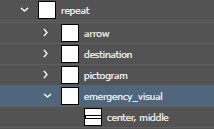
The repeat needs to contain all possible fields in this one row even if there are some that will never be used at the same time on a row. If in addition to the arrow, destination, and pictogram fields, this sign sometimes used a field called "Emergency Visual", that visual's bounding box would be drawn on the same row as all the other fields. It would overlap the other fields and that wouldn't be a problem because the repeat is about possibilities, not what actually gets drawn together.
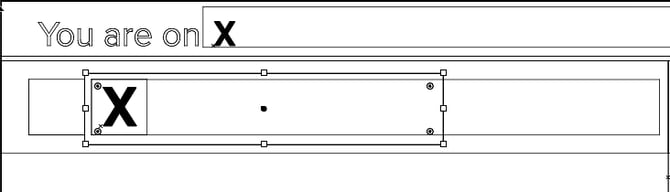
If you are not familiar with why the Destination and Pictogram bounding boxes are drawn overlapping each other in this sign, check out this article: Alignment
6. Define the Spacing Between Repeats
Now that we've defined what could go in each row, we have to define how close the rows should be drawn to each other. There are two ways to do this, but this article will focus on the simpler method that assumes each row is a consistent height.
To learn how to create repeats with variable spacing, check out this article: Repeat Spacing
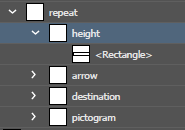
First create a layer within the repeat called "height". Then draw a bounding box within that layer that is the height and width of each row. It will at least be large enough to encompass the bounding boxes of the fields within the repeat.
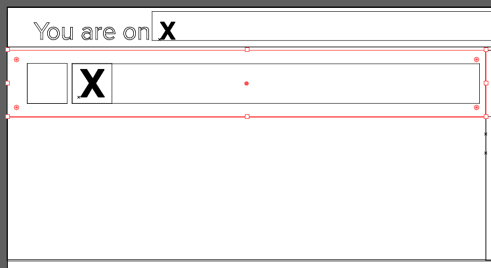
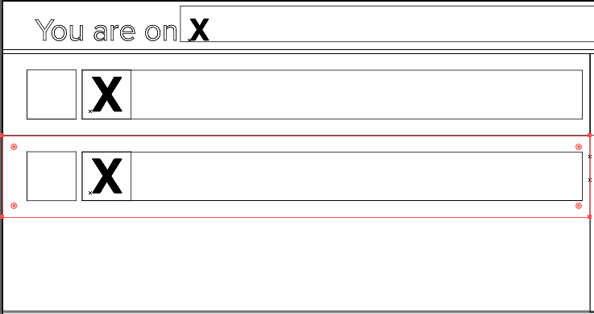
When the system goes to draw the second row it will step and repeat all elements within the height box immediately underneath.
6. Upload the Template