You can never trust a two-faced sign, but now you can set one up!
There are two distinct ways to create a double-sided (or multi-sided) sign within the Sign Type Creation setup. The method you choose depends on whether you only need the sign marker to be multi-sided, or if you need to manage the text/messaging on each individual side.
Method 1: Multi-Sided Marker Only
If you only need the sign marker on your floor plan to indicate it is double-sided, but you are not concerned with capturing the specific messaging for each side, you will use the Marker tab.
-
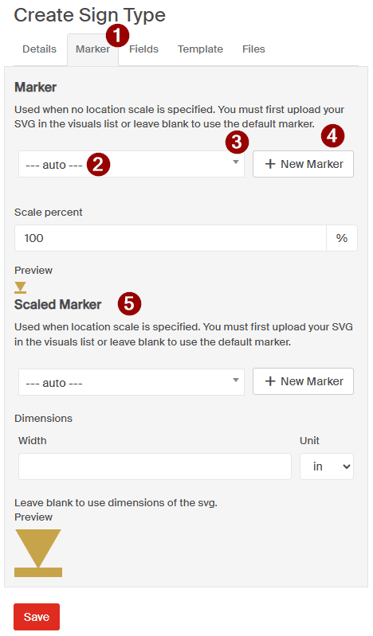
While creating your sign type, navigate to the Marker tab.
-
By default, the marker is set to 'auto'. This means if you set up a multi-sided sign for messaging (Method 2), the system will automatically use a multi-sided marker for you.
-
To manually override this and force a multi-sided marker, click the dropdown under the Marker section and select your desired option (e.g., 2 sided, 3 sided, 4 sided).
-
You can choose to upload a custom marker as well. Learn more in this article.
-
The same process applies to the Scaled Marker section below it. You can select the number of sides and define the specific dimensions of the sign.
Method 2: Multi-Sided Messaging (Most Common)
The most common approach is to use the Fields tab. This method allows you to dictate how the messaging will be captured for each side of the sign.
-
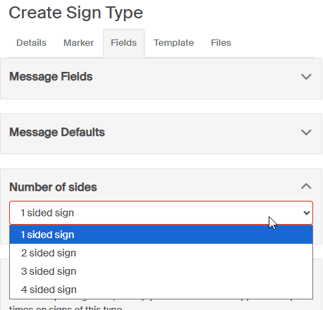
Navigate to the Fields tab.
-
Under the Number of sides dropdown, select the number of sides your sign has (e.g., 2 sided sign).
Once you have defined the number of sides, you must configure your fields based on whether the message is identical on both sides or if each side has a unique message:
Scenario A: The message is exactly the same on all sides
Add the required fields to the Message Fields section of the sign. This can later be templated so entering information into a field will cause it to appear on both sides of the sign's artwork.
Scenario B: The message is different on each side
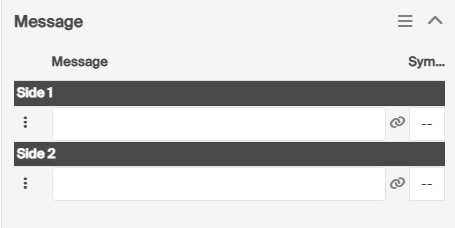
If Side 1 needs to contain messaging independent of Side 2, you must use repeating fields. The resulting interface will look like the one below where information can be entered separately for each side. Learn more about repeating fields in this article.